
Migrating Your Data to FairCom ISAM
Before your application is ready to use FairCom ISAM, the data must be converted to a format that can be used by FairCom RTG/ISAM. This is done by exporting data from your ISAM application and importing into FairCom RTG/ISAM. This is a one-time process that must be done before you can use FairCom RTG/ISAM.
FairCom RTG/ISAM provides a GUI tool to aid in migration, RTG Migrate, as well as a command-line utility, ctmigra.
Another way to migrate data is to use BUTIL to export from ISAM and ctutil to import to FairCom RTG/ISAM, as described in Converting ISAM Data to FairCom RTG/ISAM.
Files and File Names
Many ISAM files combine data and indexes in the same file. The conversion process will result in separate data and index files. If your ISAM file name includes a suffix, such as myfile.ved, you will see two files with these names: myfile.ved.dat and myfile.ved.idx.
If you want your data file to have the same name as your original, use the ctree.conf element <datafilesuffix> and set it to empty:
<datafilesuffix />
In this example, a ISAM file named myfile.ved will result in two files with these names: myfile.ved and myfile.ved.idx.
Configuring Your System
The information you enter into the RTG Migrate tool can be used to create a configuration file for your system. The final step of the migration wizard allows you to create and save a configuration file.
Much of the information you need for configuring your system is necessary for the migration process and will be entered in the RTG Migrate tool. If you system has additional considerations that dictate a more complex configuration file, you can use the procedures in FairCom RTG/ISAM Configuration to edit the file.
SQL Access
If you will be accessing your data using SQL, you will need to see FairCom RTG/ISAM SQL Access.
RTG Migrate
The RTG Migrate tool provides a graphical interface to help you migrate data into FairCom RTG/ISAM applications by reading records from an external database and writing them to FairCom RTG/ISAM files. This tool provides functionality similar to the command-line version, ctmigra.

The RTG Migrate tool, RTGMigrate.jar, is located in the Tools\guitools.java\ directory. Use the RTGMigrate.bat batch file to run this utility.
Note: This utility requires a FairCom RTG/ISAM DLL located in the driver directories (for example, Driver\ctree.cobol\extfh or Driver\ctree.ISAM). If you know the path to this directory, you can add it to your PATH environment variable. On Windows platforms, the RTGMigrate.bat batch file correctly sets the path for you and runs the utility.
You will see four tabs in the RTG Migrate tool, which correspond to the four steps in migration:
- One - Source Environment - Allows you to prepare for the migration.
- Two - Source Files - Indicates the source of the data you will be migrating to FairCom RTG/ISAM.
- Three - Destination - Indicates the destination of the migrated data, which must be accessible to the FairCom RTG/ISAM system.
- Four - Migrate - Begins the migration process.
One - Source Environment
The first tab of the RTG Migrate tool (shown above) is where you prepare for the migration.
Migration Origin
- Select original environment - Select ExtFH for Micro Focus and other COBOL compilers that use this file system or select PSQL / ISAM for Btrieve files. The Check Library button tests the presence of the native library to convert data from the original format to the FairCom RTG/ISAM format.
- Select the source base directory of the source files - Enter the directory that contains the source files or click the three dots to navigate to it.
- Optional Btrieve owner name - If you are migrating from Btrieve files (PSQL / ISAM) to indicate the owner.
After entering the information in the fields, click the Next button to advance to the next tab.
Two - Source Files
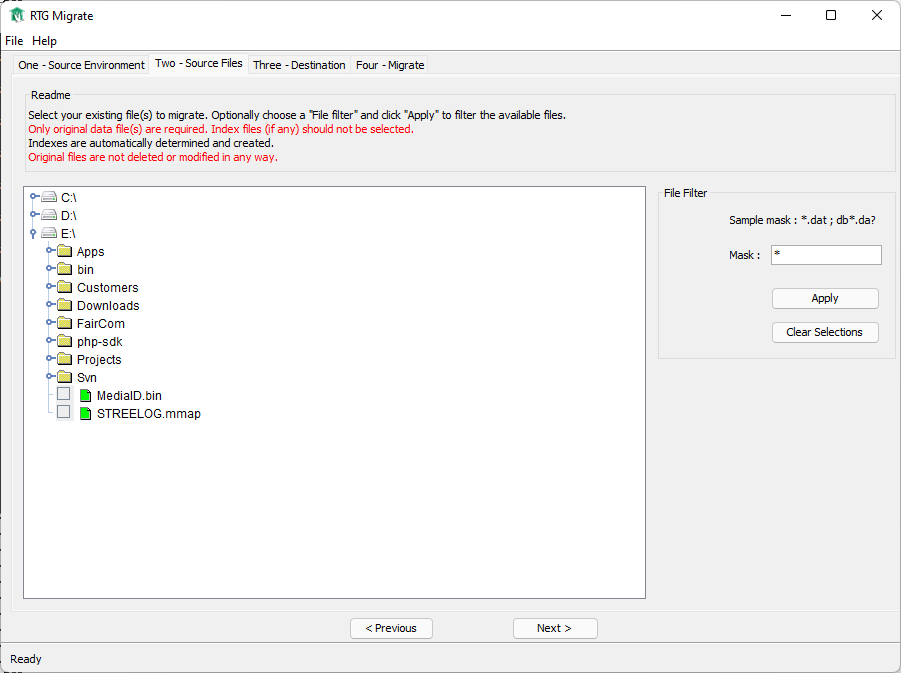
Use this tab to select the data files to be migrated. The data will be read out of these files and copied to the destination you specify in the next tab. The original files will not be altered in the process.
Do not specify index files because they will be created as part of the migration.
The file system is shown in the tree view on the left. Click to the notes to expand them and click on the files to select the ones to be migrated.
File Filter
The field labeled File Filter allows you to specify a mask using wildcards. Click Apply to apply changes to the mask.
Click the Next button to advance to the next tab.
Three - Destination
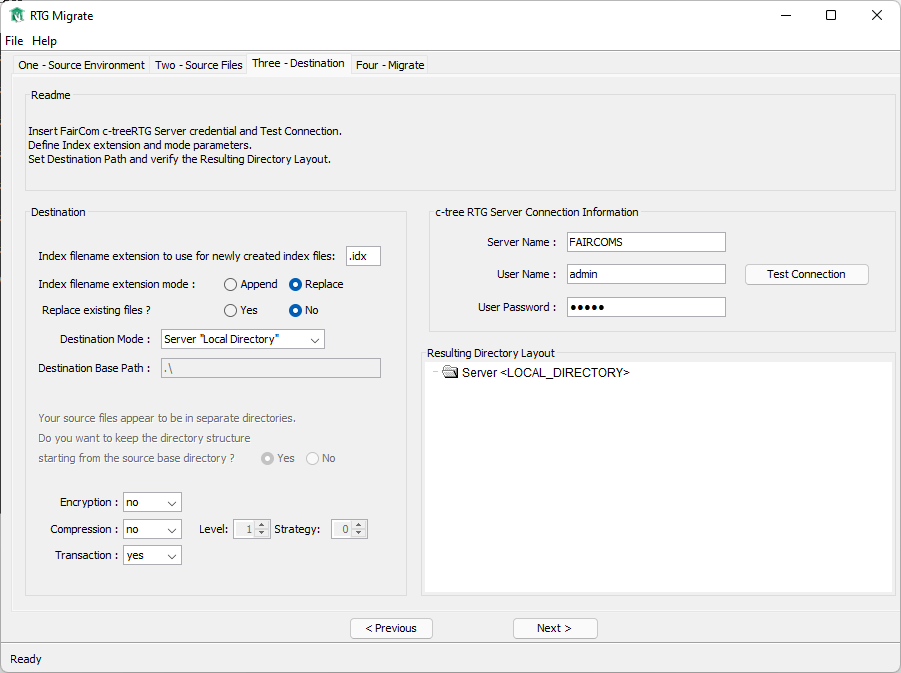
Destination
- Index Filename Extension - Enter the suffix of the destination index file name (default: .idx).
- Index Filename Extension Mode - Select Append to if you want the extension entered to be appended to the file name or select Replace to have it replace an extension already in the file name.
- Replace Existing Files - Select whether or not to overwrite existing files.
- Destination Base Path - Enter the path to the destination root directory. Migrated files and directories will be placed under this directory on the destination host. This path can be relative to the FairCom RTG/ISAM LOCAL_DIRECTORY or it can be an absolute path.
- Encryption, Compression, Transaction - You can also set these parameters.
Resulting Directory
The Resulting Directory layout shows indexes with their names and it highlights conflicts.
FairCom RTG/ISAM Server Connection Information
The destination server is the server to which the migrated files will be copied.
- Server Name, User Name, Password - Enter the login information for the destination server.
- Test Connection - The Test Connection button in the FairCom RTG RTG Migrate tool allows you to check the configuration by pinging the server.
Note: If you see an error message "Could not find RTG library" it is because the proper driver directory (e.g., Driver\ctree.cobol\extfh or Driver\ctree.ISAM) is not in the path. A batch file, RTGMigrate.bat, is provided so you run the utility without having to set the PATH environment variable in Windows environments.
Click the Next button to advance to the next tab.
Four - Migrate
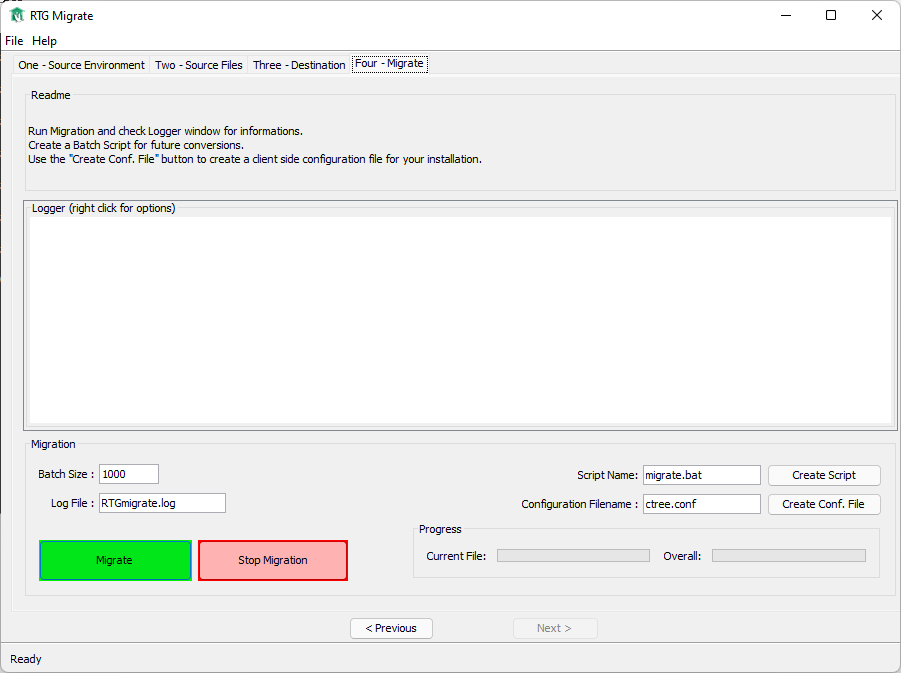
Migration
- Batch Size - Enter the number of records to read/write in batches. This setting may affect the speed of the conversion by grouping the records into batches that will be inserted into the database together. Increasing the size of the batches reduces the number of inserts and speeds performance, as long as system resources (e.g., memory) permit.
- Log File - Enter the name of the file to log additional information. To redirect log to stderr, enter a dash (‑).
- Script Name - If you want to create a script that can be run later, enter a file name for the script here and click the Create Script button.
- Create Script - Click this button if you want to create a file containing a script that can be run later. The file name will be the name entered in Script Name. The script will contain the ctmigra command with the appropriate command-line parameters based on the options you have entered in this tool.
- Configuration Filename - If you want to create a basic configuration file containing the information you have entered in this wizard, enter a file name in this field and click the Create Conf. File button. This file can be used by the ctmigra command-line utility.
- Create Conf. File - Click this button if you want to create a basic configuration file containing the information you have entered in this wizard. The file name will be the name entered in Configuration Filename. This configuration file can be edited in the RTG Config tool if you need to further refine your configuration for your environment. It can be used by the ctmigra command-line utility.
Click Migrate to begin migration. Alternatively, you can use the Create Script button to create a script that can be used later with the ctmigra utility.
You can click Stop Migration at any time to halt the operation.
Convert Microfocus ExtFH C-ISAM Tables with ctmigra
ctmigra is a general purpose data migration utility for converting non-c-tree data for use with FairCom RTG/ISAM. It can be used with multiple external data types, including Btrieve data files. (For certain data types, such as Btrieve, this also requires access to your original external libraries used to access incoming source files in their native format, and ctmigra has ability to link with these libraries as required.)
The ctmigra utility migrates data by reading records from existing external tables and writing them to FairCom RTG/ISAM files. Supported interfaces include ExtFH (for access to Micro Focus COBOL files) and ISAM (for access to Btrieve files). It also supports other file handlers.
ctmigra is located in the tools\cmdline directory of your FairCom RTG/ISAM installation. A graphical interface version RTG Migrate is also available providing similar functionality in an easy to view window. You'll find this in your tools/guitools.java of your FairCom RTG/ISAM installation.
Example
Note: This example is appropriate for Btrieve tables and C-ISAM COBOL tables.
To copy and covert data from Micro Focus COBOL tables into FairCom RTG/ISAM, use ctmigra as follows:
ctmigra extfh -s C:\MICROFOCUS\lib\MFFH.DLL!MFFH S:\Data.MF\MYFILE D:\Data.RTG\MYFILE.dat
To use ctmigra with Unix-based Micro Focus libraries, be sure to pre-load them with the LD_PRELOAD environment variable or an alternative mechanism.
For example, on an AIX 64-bit platform (this is all on a single command line):
LDR_PRELOAD64=libcobrts64.3.so:libcobcrtn64.3.so:libcobmisc64.3.so ctmigra extfh -s libcobrts64.3.so!EXTFH /data/mf/myfile /data/rtg/myfile.dat
For example, on a Linux 32-bit platform (this is all on a single command line):
LD_PRELOAD=libcobrts.so:libcobcrtn.so:libcobmisc.so ctmigra extfh -s libcobrts.so!EXTFH /data/mf/myfile /data/rtg/myfile.dat
See Also
ctmigra - Conversion Utility
Convert C-ISAM or Btrieve tables to FairCom RTG/ISAM.
Usage of FairCom RTG/ISAM ctmigra depends on your native data file types and your platform.
Usage
ctmigra ISAM|extfh [OPTIONS] SOURCE DEST
where:
- SOURCE - name of the file to be copied.
- DEST - name of the file to which it will be copied.
Options for FairCom RTG/ISAM Files
- -n SERVERNAME or --dest-server=SERVERNAME where SERVERNAME is the name of the destination FairCom DB Server
- -u USERID or --dest-user=USERID where USERID is the user name of the destination FairCom DB Server
- -p PASSWORD or --dest-password=PASSWORD where PASSWORD is the user password of the destination FairCom DB Server
- -I STRING or --dest-idx-suffix=STRING where STRING is the suffix of destination index file name
- -N SERVERNAME or --source-server=SERVERNAME where SERVERNAME is the name of the source FairCom DB Server
- -U USERID or --source-user=USERID where USERID is the user name of the source FairCom DB Server
- -P PASSWORD or --source-password=PASSWORD where PASSWORD is the user password of the source FairCom DB Server
- -i STRING or --source-idx-suffix=STRING where STRING is the suffix of source index file name
- -l FILE or --log=FILE where FILE is the name of the file to log additional information. To redirect log to stderr use ‑ as FILE
- -b RECORDS or --batch-size=RECORDS where RECORDS is the number of records to read / write in batches
- -a (--append-ext) appends index extension instead of replacing data extension.
- -o OWNER (--owner=OWNER) specifies the ISAM file owner (can be used if you encountered an error 51 when attempting to migrate).
- -r (--replace) instructs ctmigra to replace the existing destination file (V11 and later).
- -e, --encrypt=CIPHER - Encrypt destination file with CIPHER algorithm.
- -z, --datacompress=TYPE[;LEV][;STR] - Compress destination data file with TYPE algorithm.
- -t, --transaction=no|yes|logging - Create destination data file with or without transaction support.
The last three options enable the following configuration options on the destination file (corresponding to -e, -z, and -t respectively):
<encrypt type="CIPHER">
<datacompress type="TYPE"= level="LEV" strategy="STR">
<transaction logging="no|yes">
See usage examples in the next topics. Notice that the Micro Focus COBOL Migration Example can be useful for Btrieve users.
External Library Configuration for Native File Access
For certain data types, such as ISAM, original external libraries are required to access native data formats.
- -s LIBRARY!FUNCTION or --source-lib=LIBRARY!FUNCTION where LIBRARY is the external dynamically loadable library and FUNCTION is the interface entry-point function to handle the source file
- -d LIBRARY!FUNCTION or --dest-lib=LIBRARY!FUNCTION where LIBRARY is the external dynamically loadable library and FUNCTION is the interface entry-point function to handle the destination file
Note: Current usage options are always available when no command-line options are supplied.
Examples
If you are using FairCom RTG COBOL:
ctmigra.exe extfh -s MFFH.DLL -n FAIRCOMS@localhost -r C:\mydata\abc-ISAM.dat abc-ctree.dat
If you are using FairCom ISAM:
ctmigra.exe ISAM -s wISAM32.dll -n FAIRCOMS@localhost -r C:\mydata\abc-ISAM.dat abc-ctree.dat
For more examples, see Micro Focus COBOL Migration Example.
ctmigra --quiet and --verbose options to select output information
These options for the ctmigra command-line utility suppress all output (--quiet or -q) or select the information to be sent to stdout (--verbose=LEVEL or -v). The --verbose parameter is a bitmask which can combine the following values:
1 - show message about final result
2 - show percentage progress
4 - show time spent in migration phases (read, write, finalize)
For example, to display everything, use --verbose=7, which is 1+2+4. If not specified, the --verbose level is 3 (1+2).
The --quiet option is identical to --verbose=0.
Alternative Usage
Most of the information you need for migration can be entered using the command-line parameters listed above. If you have additional considerations that dictate a more complex configuration, such as files that need to be treated specially, multiple clients, servers, etc., you can create a local configuration file (ctree.conf) for use during migration. (It can be edited as described in Editing a Configuration File.)
Note: The recommended best practice is to run ctmigra using the parameters listed above. If you must use the "alternative" approach described in this section, use the bulkaddition option in ctree.conf, which will greatly improve performance and it will optimize the index.
To use ctmigra with a local FairCom RTG/ISAM configuration file, use the following command:
ctmigra ISAM|extfh -c CONFIG_FILE SOURCE DEST
where:
- SOURCE - name of the file to be copied
- DEST - name of the file to which it will be copied
- -c CONFIG_FILE or --config=CONFIG_FILE where CONFIG_FILE is a valid FairCom RTG/ISAM configuration file.
Be sure to include the bulkaddition option in ctree.conf.
Potential Errors and Troubleshooting
ISAM Error: -7 |
Your native source library is likely not available. Check the path to your native data file handling library and be sure it is specified with the --source-lib= option. |
ISAM Error: 53 |
Attempted to open a non-ISAM file via a ISAM interface. This can possibly happen when you load a 32-bit ISAM DLL with a 64-bit version of the tool, or vice versa. |
In FairCom RTG V2, error messages displayed by the ctmigra utility have been enhanced as follows:
- It now displays actual file names instead of $SOURCE$ and $DEST$.
- It now displays an error message if the source or destination c-tree Servers are not running (c-tree error 133).
- It now displays an error message if the user/password is not correct (c-tree error 450/451) or GUEST logon is disabled (c-tree error 470).
- It now displays an error message if c-tree Server is not valid due to OEM version incompatibility (c-tree error 530).
- It now displays an error message if the specified external library cannot be loaded.
Behavior Change: This modification changes the behavior of the ctmigra tool.
ISAM Conversion Example
To copy and convert data from ISAM files into FairCom RTG/ISAM, use ctmigra as shown below:
Windows x86
ctmigra.exe btrv –s WBTRV32.DLL S:\Data.PSQL\MYFILE D:\Data.RTG\MYFILE.dat
Windows x64
ctmigra.exe btrv –s w64BTRV.dll S:\Data.PSQL\MYFILE D:\Data.RTG\MYFILE.dat
Unix/Linux
./ctmigra btrv –s libpsqlmif.so /data.psql/myfile /data.rtg/myfile.dat
Micro Focus COBOL Migration Example
Note: This example is appropriate for Btrieve tables and C-ISAM COBOL tables.
To copy and covert data from Micro Focus COBOL tables into FairCom RTG/ISAM, use ctmigra as follows:
ctmigra extfh -s C:\MICROFOCUS\lib\MFFH.DLL!MFFH S:\Data.MF\MYFILE D:\Data.RTG\MYFILE.dat
To use ctmigra with Unix-based Micro Focus libraries, be sure to pre-load them with the LD_PRELOAD environment variable or an alternative mechanism.
For example, on an AIX 64-bit platform (this is all on a single command line):
LDR_PRELOAD64=libcobrts64.3.so:libcobcrtn64.3.so:libcobmisc64.3.so ctmigra extfh -s libcobrts64.3.so!EXTFH /data/mf/myfile /data/rtg/myfile.dat
For example, on a Linux 32-bit platform (this is all on a single command line):
LD_PRELOAD=libcobrts.so:libcobcrtn.so:libcobmisc.so ctmigra extfh -s libcobrts.so!EXTFH /data/mf/myfile /data/rtg/myfile.dat
Converting ISAM Data to FairCom RTG/ISAM with butil/ctutil
An alternative method for converting data from ISAM to FairCom RTG/ISAM is as follows:
- Export the data using the BUTIL utility with the ‑save option:
BUTIL -save ISAMFile asciiFile
where ISAMFile is the name of your original ISAM data file and asciiFile is the name of the ASCII text file it is exported to.
- Import the data into FairCom RTG/ISAM using ctutil. with the ‑load option together with ‑p:
ctutil -load ctreeFile asciFile -p
where ctreeFile is the name of the data file to be used with FairCom RTG/ISAM and asciiFile is the name of the ASCII text file that was created in step 1.
See Also:
- ctutil -load
- ctutil -unload
- Pervasive: Data menu
- Pervasive: Save